Ask Muse for today's condors
Iron Condor Buddy is the MCP-native screener for short iron condors. Muse is the condor brain: it screens the batch, checks the positions you hold, and proposes adjustments — you place the trade.
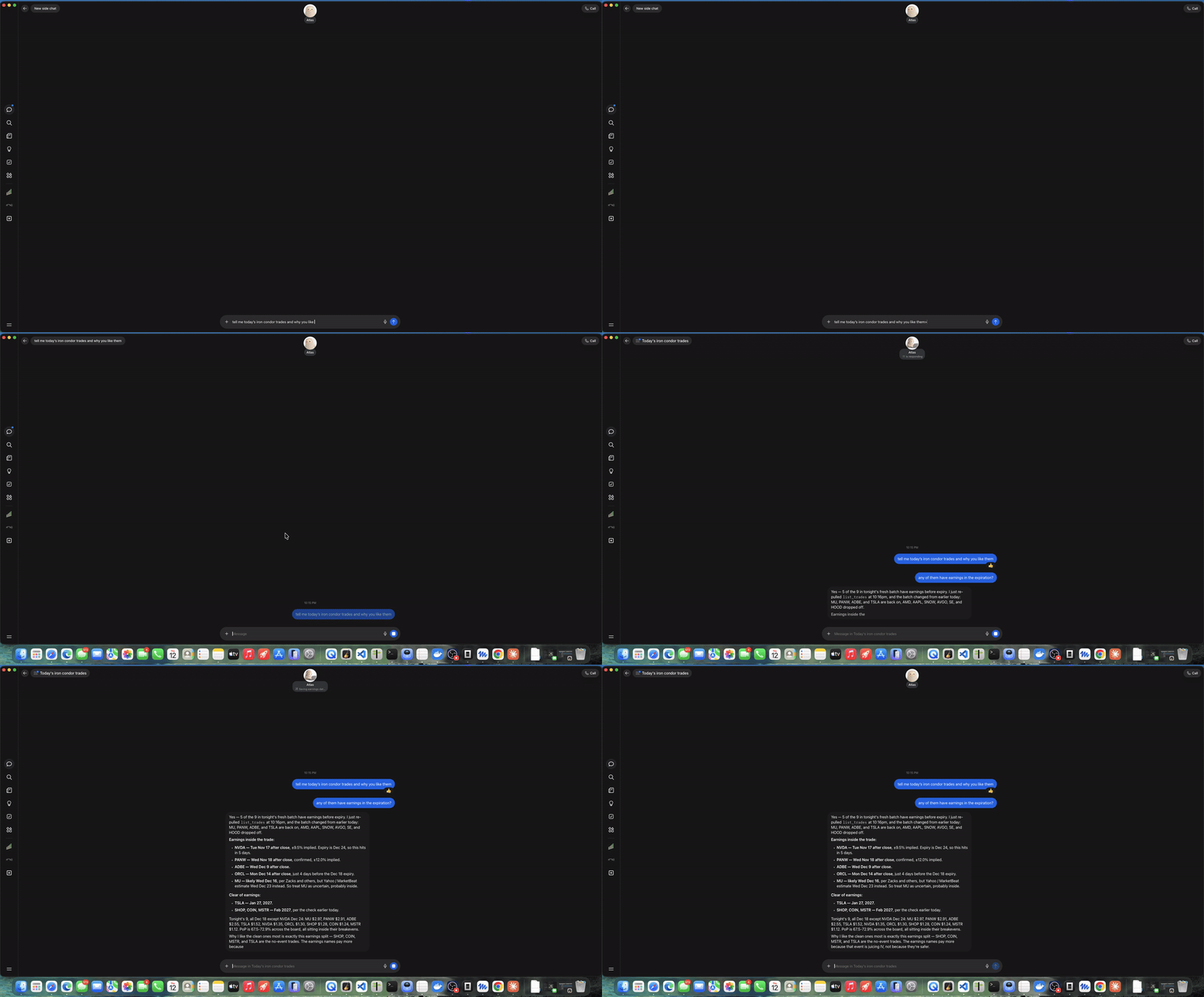
Muse, connected to Iron Condor Buddy over MCP, answering in plain language.
Try asking Muse
Copy a prompt, paste it to Muse, and follow up in your own words.
tell me about today's iron condor trades
check my AAPL Dec 18 condor
what needs adjusting this afternoon?
screen for new Dec iron condors
Connect Muse in three steps
-
1. Get your Pro token
Sign in and copy your Pro API token from your profile page. Pro is the paid plan that unlocks MCP access.
-
2. Connect Muse to the MCP server
Add Iron Condor Buddy as an MCP connection in Muse:
Server URL:
https://ironcondorbuddy-production.up.railway.app/mcpAuthentication: Bearer auth, using your Pro API token.
Store the token through Muse's secure connection flow. Do not paste tokens in chat.
-
3. Verify the 8 tools
Ask Muse to list the Iron Condor Buddy tools. It should return the eight read-only tools below. If it does, you are connected — try one of the prompts above next.
The eight read-only tools
All eight tools are read-only. None of them places, modifies, or cancels an order.
list_tradesToday's batch: strikes, breakevens, max profit/loss, IV, and probability of profit.
get_tradeOne trade in full detail.
get_market_contextTechnical snapshot: price, RSI, MACD, Bollinger position, and average true range.
get_options_chainThe options chain relevant to a trade.
get_price_historyPrice history for a trade or a specific leg.
get_performance_reportHow past recommendation batches have done.
check_positionA position you hold against its breakevens: OK, WATCH, or ACTION NEEDED.
suggest_adjustmentAdjustment candidates as exact Fidelity tickets, with new breakevens and max profit/loss.
What it looks like

Ask in plain language — no chain to parse, no screenshot to interpret.

Muse summarizes the batch and flags earnings inside the expiry window — a trade with earnings before expiry is not the same trade as one without.
Advisor, not executor
Muse proposes. You approve and place the trade. Nothing is executed for you.
When Muse proposes an adjustment, it writes it as an exact ticket you can place in Fidelity — legs, strikes, expiry, order type, and a limit price to aim for — and waits for you. The server is read-only: it does not place trades, hold brokerage credentials, or move money. Fidelity has no official public retail trading API, so there is no automated execution path here by design.
Muse also remembers what you actually hold, so it does not re-recommend a trade you already have — and a ticker dropping off the screener's list does not close your position.
Before you trade on a screening result
- • Market data is sourced from Polygon. Prices are the screener's snapshot at generation time, not a live tick.
- • Live bid/ask is not guaranteed — a credit shown in a trade record may not be fillable at that price. Confirm live prices in your broker before placing any order.
- • Probability of profit is a model estimate at generation time, not a promise about an outcome.
- • Nothing here is financial advice. Every trade is your decision.
Prefer the dashboard? The classic experience →
Full MCP documentation: ironcondor.money/docs
Claude is also supported over MCP: Claude MCP setup →